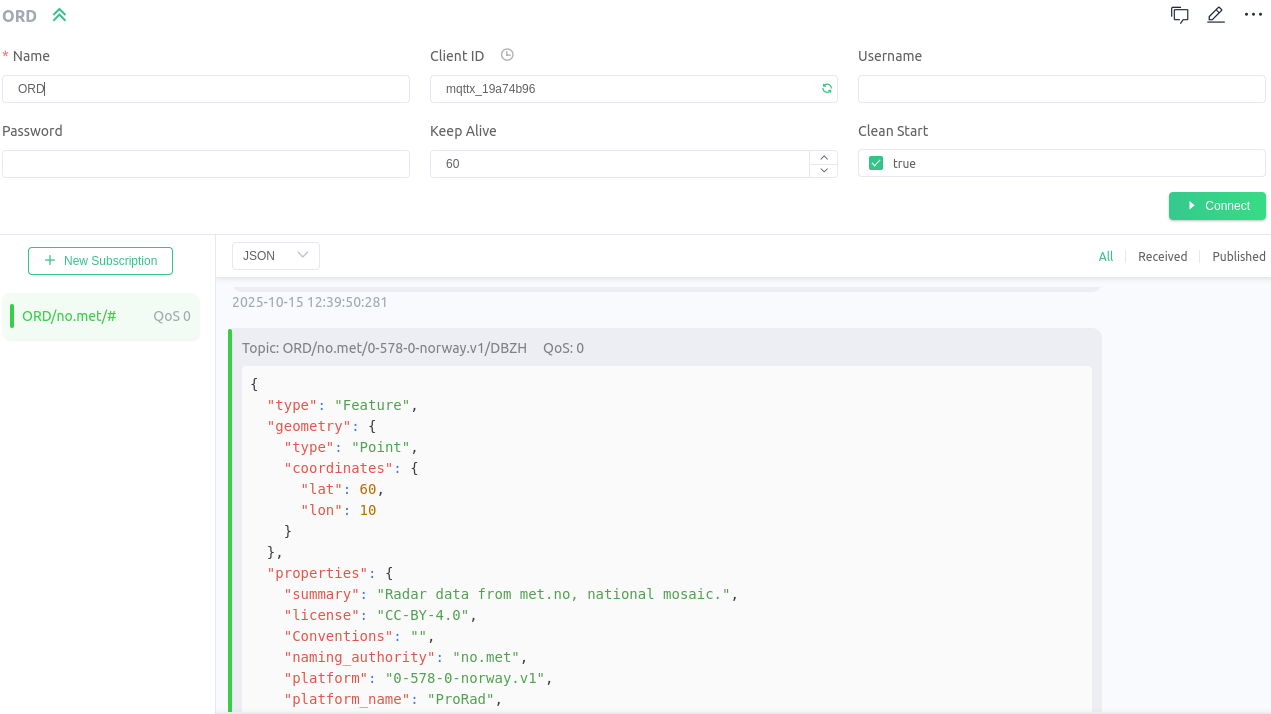
Subscribe to ORD with MQTTX
This guide explains how to subscribe to an MQTT stream using MQTTX, a user-friendly MQTT client for desktop applications. Follow the steps below to set up a connection and start listening to an MQTT topic.
Please note: ORD API onboarding on MeteoGate is finalised on May 20th, and whitelisting is no longer needed.
With the onboarding completed, access for ORD API will be provided through MeteoGate. More information can be found in the newsletter.
With this transition, please note the changes in the access point addresses and notification service port, the following ORD services are now openly available:
- ORD API via MeteoGate Gateway
- ORD API swagger UI
- Notification service: The MQTT connection parameters have changed: username: everyone, port: 8884
MQTT Stream Details
- Protocol:
wss:// - Host:
radar.meteogate.eu - Port:
8884 - Path:
/ordmqtt - SSL/TLS:
Yes - Authentication
- username:
everyone - password:
everyone - Topics: The topics hierarchy is the following:
ORD/naming_authority/wigosId/quantity. Choose or specify the topic you want to subscribe. - Examples
- Subscribe Hurum DBZH data:
ORD/no.met/0-578-0-nohur/DBZH - Subscribe all Finnish DBZH data:
ORD/fi.fmi/+/DBZH - Subscribe OPERA accumulated precipitation:
ORD/eu.eumetnet/0-20010-0-OPERA/ACRR - Subscribe OPERA product:
ORD/eu.eumetnet/# - Use the wildcard
#to subscribe to all topics.
- Subscribe Hurum DBZH data:
This access mode is deprecated and will be removed by June 30th, 2026.
- Protocol:
mqtt:// - Host:
radar.meteogate.eu - Port:
1883 - SSL/TLS: Not required (unencrypted connection)
- Authentication: None (anonymous connection, no username or password)
WIS 2.0 MQTT Stream Details (Metadata only)
- Protocol:
wss:// - Host:
radar.meteogate.eu - Port:
8884 - Path:
/wis2mqtt - SSL/TLS:
Yes - Authentication
- username:
everyone - password:
everyone - Topics:
- Metadata:
origin/a/wis2/eu-eumetnet-weather-radar/metadata/core/weather/experimental/weather-radar - Data:
origin/a/wis2/eu-eumetnet-weather-radar/data/core/weather/experimental/weather-radar
Prerequisites
- Download and install the MQTTX client from the official website:
-
Install and launch MQTTX on your computer.
Step-by-Step Guide
Step 1: Launch MQTTX and Create a New Connection
- Open the MQTTX application.
- Click the + New Connection button in the left sidebar.
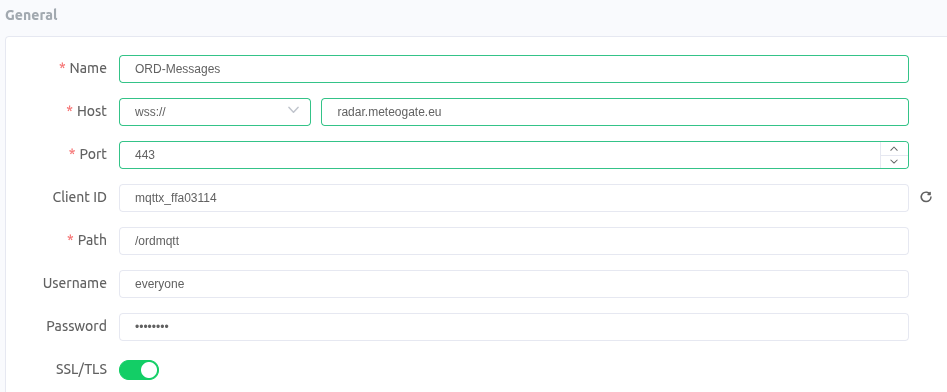
- Fill in the connection details:
- Client ID: Provide a unique identifier for your client (e.g.,
mqttx_client_1). - Host:
radar.meteogate.eu - Port:
8884 - Protocol:
wssSecure websocket - SSL/TLS:
On - Path:
/ordmqtt - Username:
everyone -
Password:
everyone -
Click Connect to establish the connection. The status of the connection will change to Connected if successful.
Step 2: Subscribe to a Topic
- Once connected, navigate to the Subscriptions tab in MQTTX.
- Click the + New Subscription button.
- Enter the topic you want to subscribe to in the Topic field:
- Example:
ORD/no.met/# - Use
#to subscribe to all topics. - Click Subscribe.
Step 3: View Incoming Messages
- Any messages published to the subscribed topic(s) will appear in the Messages tab.
- The messages include both the topic name and the payload (data sent within the message).
- The direct link is the link section(rel="item")